
If you’re wondering how to turn off joins in Roblox, you’re not alone. Many players occasionally want privacy, whether to explore a game solo, test mechanics, or simply avoid interruptions.
As someone who has spent years navigating Roblox settings and privacy options, I’ll walk you through exactly how to prevent others from joining your experience, on both PC and mobile, and how to troubleshoot if it still doesn’t work.
I’ll also explain why certain accounts may not have access to specific privacy options and how to work around those limitations. By the end of this guide, you’ll have full control over who can see your in-game status and access your sessions.
What Turning Off Joins Really Does
When you disable joins, other players can’t see what game you’re in and therefore cannot click “Join” on your profile. Roblox achieves this by hiding your active session from others using the Show current experience privacy option.
This isn’t the same as blocking or unfriending someone, it’s a full activity privacy lock.
How to Turn Off Joins in Roblox on Computer (Browser or PC App)
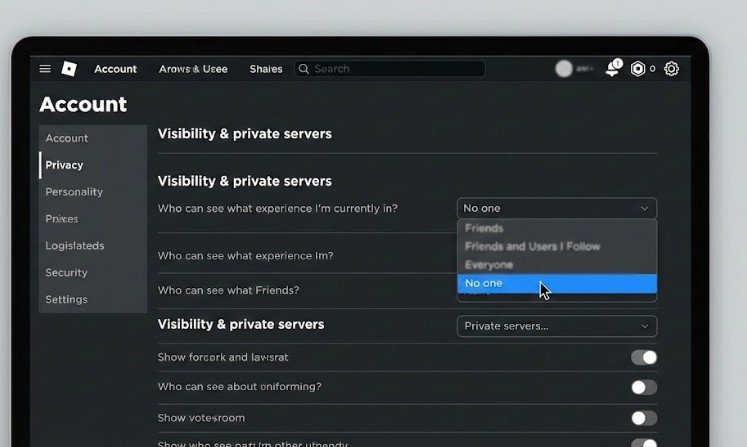
Follow these steps:
- Open Roblox and log into your account.
- Click the gear icon in the upper-right corner and select Settings.
- Click Privacy on the left menu.
- Scroll to the Visibility & private servers section.
- Find Show current experience.
- Change the setting to No one.
Your settings save automatically—no extra confirmation required.
How to Turn Off Joins in Roblox on Mobile (iOS / Android)
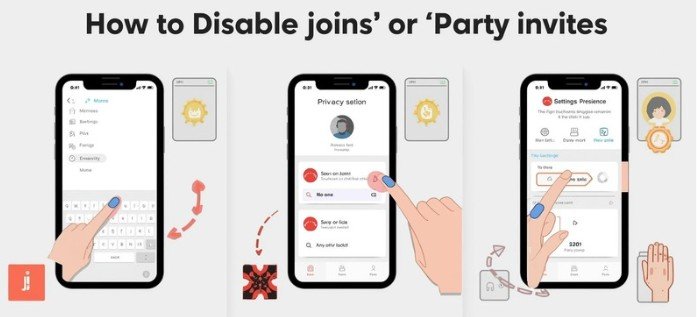
- Open the Roblox app.
- Tap the three dots (More) menu at the bottom.
- Scroll and tap Settings (gear icon).
- Tap Privacy.
- Locate the Show current experience setting.
- Set it to No one.
Again—no need to save manually.
Comparison: PC vs. Mobile Settings
Here’s a quick table to summarize:
| Feature / Step | PC / Browser | Mobile App |
| Access Settings | Gear icon top-right | Three dots → Settings |
| Privacy Menu Location | Left sidebar | Inside Settings |
| Show Current Experience | Yes | Yes |
| Set to “No one” | Yes | Yes |
| Auto-save settings | Yes | Yes |
| Requires restart sometimes | Occasionally | Occasionally |
This makes it easy to know which device has which controls.
Why People Still Join Even After Turning Joins Off

If users are still able to join you, here are the top reasons:
You are still friends with them
Friends may still see your activity, depending on your age settings.
Your account is age-restricted
Players under 13 may have limited privacy controls.
Roblox hasn’t refreshed your session
Try:
- Logging out and back in
- Restarting the Roblox app
- Restarting your device
Your privacy settings are parent-managed
If your account has parental restrictions, you may need approval.
Additional Ways to Prevent People From Joining You
Sometimes you may want even deeper privacy. Here are other methods:
Set “Who can join me” to No One (If Available)
Some Roblox accounts include this separate setting:
- Who can follow me into games?
- Who can join me?
Select:
- No one
- or Friends (if you want limited access)
Play in a Private Server
Many games offer private servers.
- Some are free
- Others cost Robux
- Often completely isolate you from public players
If your goal is total solitude—this is the most reliable method.
Block Specific Players
If one particular person won’t leave you alone:
- Open their Roblox profile
- Tap …
- Select Block user
This prevents:
- Following
- Messaging
- Joining your games
Troubleshooting: Common Scenarios
You can’t see the “No one” option
This usually happens if:
- Your account is marked as under age 13
- Parental controls are active
In these cases, Roblox restricts certain privacy features.
Your friends keep joining anyway
This happens if:
- You are on their friend list
- They see your activity via game invites
- They previously joined through a server link
Solution:
- Set “Who can join me” to No one
- Consider removing them temporarily from friends list
- Block them if necessary
You changed settings but nothing is different
Try:
- Refreshing browser
- Clearing app cache
- Signing out and back in
- Updating Roblox to the latest version
Safety and Privacy Notes
- Avoid sharing private server links publicly
- Never share personal details in-game chat
- Report harassment or stalking inside Roblox using Report Abuse
- Be cautious with third-party extensions that claim to control privacy settings
FAQs: How to Turn Off Joins in Roblox
1. Does setting “Show current experience” to No One completely stop joins?
Yes—for most players. It hides your in-game activity and prevents joining through your profile. However, friends may still join depending on additional settings.
2. Do I need to be over 13 to change these settings?
Some privacy settings are limited for Under-13 accounts. If you cannot select “No one,” it may be due to age-based restrictions.
3. Can I turn off joins for just one person?
Not directly—but you can block them. Blocking a user prevents them from:
- Following you
- Joining you
- Messaging you
4. Can I hide my online status entirely?
Roblox allows some users to hide activity information, but this varies by account age and region.
Final Thoughts: You’re in Control of Your Roblox Privacy
Learning how to turn off joins in Roblox gives you more control over your gaming experience. Whether you’re playing solo, testing something privately, or just want quiet playtime, changing your privacy settings allows you to choose exactly who can see and join your activity.
It also helps reduce unwanted interruptions, making your gameplay smoother and more focused. Ultimately, these privacy tools ensure that your time on Roblox stays enjoyable and on your terms.
Always remember:
- The settings can be changed any time
- Restarting often fixes update delays
- Your privacy and comfort while gaming should always be respected
