If you’ve ever wished someone else could help track your keys, luggage, backpack, or any item with an AirTag attached, you’re not alone. With iOS 17, Apple finally introduced a feature many users had been waiting for: AirTag sharing. This means you can now let trusted family members or friends see the AirTag’s real-time location, use Precision Finding, and get alerts just like you.
In this guide, I’ll break down exactly how to share AirTag location, the requirements you must meet, the difference between permanent sharing and temporary link sharing, and the small details people often miss. Whether you’re sharing AirTags inside a household or temporarily sharing a lost item’s location with someone helping you search, this step-by-step guide is all you need.
What Does AirTag Sharing Allow You to Do?
When you share an AirTag, you’re giving another person the ability to:
- View the AirTag’s live location anytime
- Use Precision Finding (on supported devices)
- Play a sound on the AirTag to help find it
- Get directions to the item
- Receive left-behind notifications if enabled
However, only the primary owner can remove the AirTag from their account or enable Lost Mode. This keeps ownership secure while still allowing shared tracking.
Requirements Before You Share an AirTag
Before learning how to share AirTag location, make sure both you and the person you’re sharing with meet these conditions:
- iOS 17, iPadOS 17, or macOS Sonoma or later
- Apple ID with two-factor authentication
- iCloud Keychain turned on for both users
- The recipient must have a standard Apple account (not a child account)
- Bluetooth and Location Services enabled
Without these, the Add Person option may not appear.
How to Share AirTag Location Permanently

This is the main way to share AirTags with friends or family members who need consistent access to the item’s location. Perfect for shared car keys, suitcases, pet collars, and family bags.
Follow these steps:
Step 1: Open the Find My App
Launch Find My and select the Items tab.
Step 2: Select Your AirTag
Tap the AirTag you want to share.
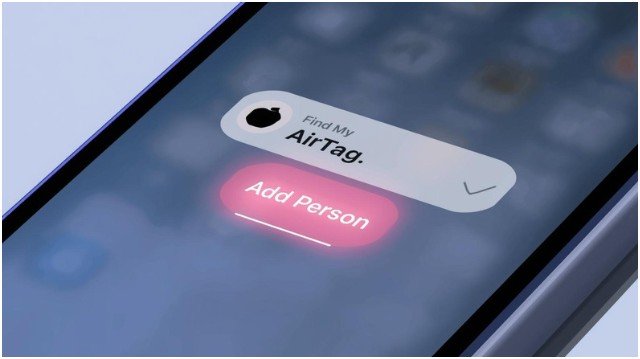
Step 3: Tap Add Person
You’ll find this under the Share This AirTag section.
Step 4: Choose the Person
Tap Continue, enter their Apple ID email, phone number, or name, and select the correct contact.
Step 5: Tap Share
The invitation will be sent instantly.
The recipient receives a notification and must accept the share request before they can view the AirTag.
How Many People Can You Share With?
You can share with up to five people, making a total of six users including you.
Once shared, the person can track, locate, and view your AirTag like it’s their own.
How to Share AirTag Location Temporarily (Lost Mode Link)

There may be situations where you lose an item and want someone else to help search for it, but you don’t want to permanently share the AirTag. Apple introduced a new option: a temporary link.
This is useful when:
- A friend is helping you look for lost luggage
- A delivery person or hotel staff needs access
- A roommate wants to help track a misplaced item
Here’s how to generate the temporary link:
Step 1: Mark the AirTag as Lost
Open Find My, select the item, and enable Lost Mode.
Step 2: Tap Share Item Location
This is only visible when the AirTag is in Lost Mode.
Step 3: Tap Continue
Apple will remind you the link expires automatically.
Step 4: Tap Share Link
You can send it via Messages, email, AirDrop, or any messaging app.
Link Rules
- Valid for seven days
- Requires the viewer to sign in with their Apple ID once
- Only shows location; does not allow Precision Finding or ringing the AirTag
This method is temporary and does not give full access, making it ideal for quick help without long-term sharing.
Comparison: Permanent Sharing vs Temporary Link
To make the decision easier, here’s a quick comparison table:
| Feature | Permanent Sharing | Temporary Lost Mode Link |
| Access Duration | Ongoing until removed | Seven days |
| Recipient Needs Apple ID | Yes | Yes |
| Precision Finding | Yes | No |
| Can Play Sound | Yes | No |
| Useful For | Family tracking, shared items | Helping locate lost items |
| Left Behind Alerts | Yes | No |
| Max People | Up to five | Unlimited links |
Use permanent sharing when you want consistent access for someone, and temporary sharing when you simply need assistance recovering a lost item.
How to Stop Sharing an AirTag
If you no longer want someone to see your AirTag, you can remove them anytime.
Steps to stop sharing:
- Open Find My
- Go to the Items tab
- Select the shared AirTag
- Tap the person’s name
- Tap Remove
They will immediately lose access.
Common Problems and Fixes
Even if you know how to share AirTag location, sometimes the Share option doesn’t appear. Here are the most common issues and solutions:
Problem: Add Person Is Missing
Fix:
- Update iPhone to iOS 17 or later
- Ensure iCloud Keychain is turned on
- Make sure the AirTag is registered to your Apple ID
Problem: Recipient Isn’t Receiving the Invitation
Fix:
- Confirm their Apple ID is typed correctly
- Check they aren’t using a child account
- Make sure they’re signed into iCloud
Problem: Shared User Cannot See Location
Fix:
- Make sure Location Services are on
- Ensure Bluetooth is enabled
- Check if the AirTag is out of range
- Restart both devices
Is AirTag Sharing Safe and Private?
Yes. Apple uses end-to-end encryption for AirTag sharing. This means:
- Only the owner and shared users can see the location
- Apple cannot view or access the data
- Shared users do not receive unwanted tracking alerts since the AirTag is recognized as intentionally shared
Your location and movement remain protected at all times.
When Should You Use AirTag Sharing?
AirTag sharing is extremely useful in scenarios like:
- Shared car keys in a household
- Couples tracking luggage during travel
- Parents sharing access to a child’s backpack tag
- Roommates tracking shared items
- Teams securing shared equipment
It eliminates the need to hand over your phone or constantly update someone on where the item is.
FAQs
1. Can I share an AirTag with Android users?
No. AirTag sharing requires an Apple ID and Apple’s Find My network.
2. Can someone else track my AirTag without me knowing?
No. You must manually add them, and they must accept the invitation.
3. Does sharing an AirTag trigger anti-stalking alerts?
No. Because the shared user is recognized as approved, anti-stalking notifications are disabled for them.
4. How many people can I share an AirTag with?
Up to five additional Apple IDs.
5. Does factory resetting an AirTag remove shared users?
Yes. A full reset removes all associations, including shared users.
Final Thoughts
Learning how to share AirTag location is essential if you want to get the most out of your AirTags, whether for daily convenience or peace of mind in emergencies.
Permanent sharing is ideal for ongoing shared access, while temporary link sharing helps during lost-item situations without long-term permissions.
With Apple’s strong privacy protections and the ability to share with up to five people, AirTags become even more powerful and practical in everyday life.
If you’re using AirTags with family, coworkers, or travel partners, sharing is a simple upgrade that boosts both convenience and security.